기존(310)/🏀JavaScript
[JS] 자바스크립트 console.log , document 사용법
조각남자
2022. 8. 30. 20:47

1. console.log 사용법
<script></script> 사이에 자바스크립트 코드를 넣어서 사용하는데요.
<head>
console.log("안녕하세요 콘솔로그로 작성한 로그에요")
</head>
헤드에도 사용가능하고
<body>
console.log("안녕하세요 콘솔로그로 작성한 로그에요")
</body>
에도 사용이 가능해요 !
<%@ page language="java" contentType="text/html; charset=EUC-KR"
    pageEncoding="EUC-KR"%>
<!DOCTYPE html>
<html>
<head>
<meta charset="EUC-KR">
<title>Insert title here</title>
</head>
<body>

<script>

console.log("안녕하세요 콘솔로그로 작성한 로그에요")

</script>


</body>
</html>
웹페이지 실행을하게 되면
F-12 개발자 도구에 들어가서 CONSOLE 창을 확인해보면 작성이 된것을 확인할수 있습니다.

2. document 사용법
이것도 console.log 마찬가지로 넣어서 head 나 body 에서 사용가능해요
<script></script> 사이에 자바스크립트 코드를 넣어서 사용하는데요.
<head>
document.write("안녕하세요 콘솔로그로 작성한 로그에요")
</head>
헤드에도 사용가능하고
<body>
document.write("안녕하세요 콘솔로그로 작성한 로그에요")
</body>
에도 사용이 가능해요 !
<%@ page language="java" contentType="text/html; charset=EUC-KR"
    pageEncoding="EUC-KR"%>
<!DOCTYPE html>
<html>
<head>
<meta charset="EUC-KR">
<title>Insert title here</title>
</head>
<body>

<script>


document.write("안녕하세요 웹페이지에 직접 작성햇어요");
</script>


</body>
</html>
Document 객체
Document 객체는 웹 페이지 그 자체를 의미합니다.
웹 페이지에 존재하는 HTML 요소에 접근하고자 할 때는 반드시 Document 객체부터 시작해야 합니다.
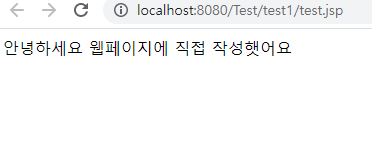
이렇게 웹페이지 바로 작성된걸 확인해볼수 있습니다.
오늘은 이걸로 마치겟습니다 ~
감사합니다